
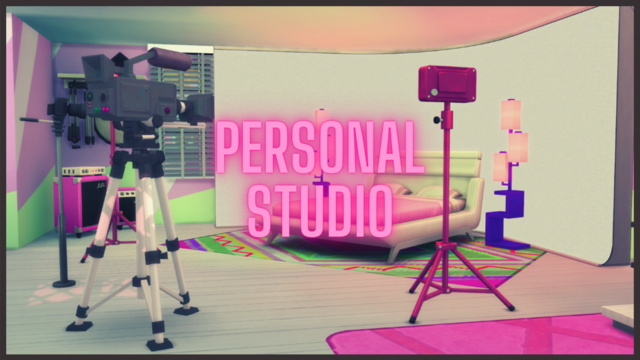
Okay so… if you’ve ever tried taking nice screenshots in The Sims 4, you already know how annoying it can get. Weird lighting, Sims looking the wrong way, poses breaking… yeah. That’s where AEP Photo Studio comes in.
It’s not exactly a “must-have” for everyone, but if you’re into Sims 4 photography, storytelling, or aesthetic screenshots, this mod makes things way easier.
.You get things like backdrops, better lighting control, and a cleaner environment to take pictures.
There’s also an optional version floating around, which usually means extra objects or a slightly different setup depending on how you want your studio to look.
What You Can Do With It
- Take cleaner, more professional-looking screenshots
- Set up your own Sims 4 photo studio at home or on a lot
- Combine it with pose packs for better storytelling
- Control lighting and background way more easily
It’s especially useful if you’re into Sims 4 storytelling, pose player mods, or custom content photography. Without something like this, screenshots can feel kinda random.
Does It Work With Other Mods?
Yeah, that’s actually where it shines. People usually use it with:
- Pose Player
- WickedWhims / WonderfulWhims
- Custom content (CC) clothes and animations
So it’s not really a standalone thing — more like a tool that makes other mods look better.
Optional Version – Should You Use It?
Honestly, depends. The AEP Photo Studio optional version is nice if you want extra flexibility or slightly different objects, but the base setup already does the job.
If you like customizing your space → go for it.
If you just want quick screenshots → you might not need it.
- CC: Stands for custom content. CC is content created by fans of the game.
- How To Download CC For Sims 4?
- Go to the Menu and then Game Options. Select ‘’Other’’ and check the ‘’Enable Custom Content and Mods’’ box.
Credit : nightcrawler-sims